Tools
Project Management - GitHub Projects
We use GitHub Projects as our project management software. We use it for tracking development work across sprints, backlogs, creating timeline views and defining our future roadmap.
Code Version Control - GitHub
GitHub is our code version control software. We use it for tracking changes to our codebase, managing our repositories and to automate our CI/CD pipeline.
Integrated Development Environment (IDE)
We have a few recommendations and options that the development team can use for their local development environments:
- JetBrains/WebStorm
- Cursor
- Antigravity
Agentic AI
At ESProfiler we encourage the use of innovative tools to help us with our work, including Agentic AI. We have a few recommendations and options that the development team can use for their local development environments:
Cursor
In Cursor, you must ensure that "Privacy Mode" is toggled on. This ensures that none of our code base is shared with Cursor, or the underlying models for further training. You can find this option in:
File > Preferences > Cursor Settings > General > Privacy

Antigravity
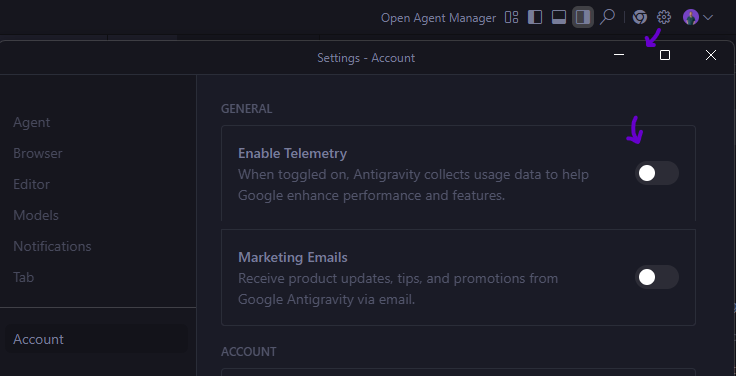
In Antigravity, you must ensure that "Enable Telemetry" is toggled off. This ensures that none of our code base is shared with Antigravity, or the underlying models for further training. You can find this option in:
Settings > Account > Enable Telemetry
OpenAI Codex
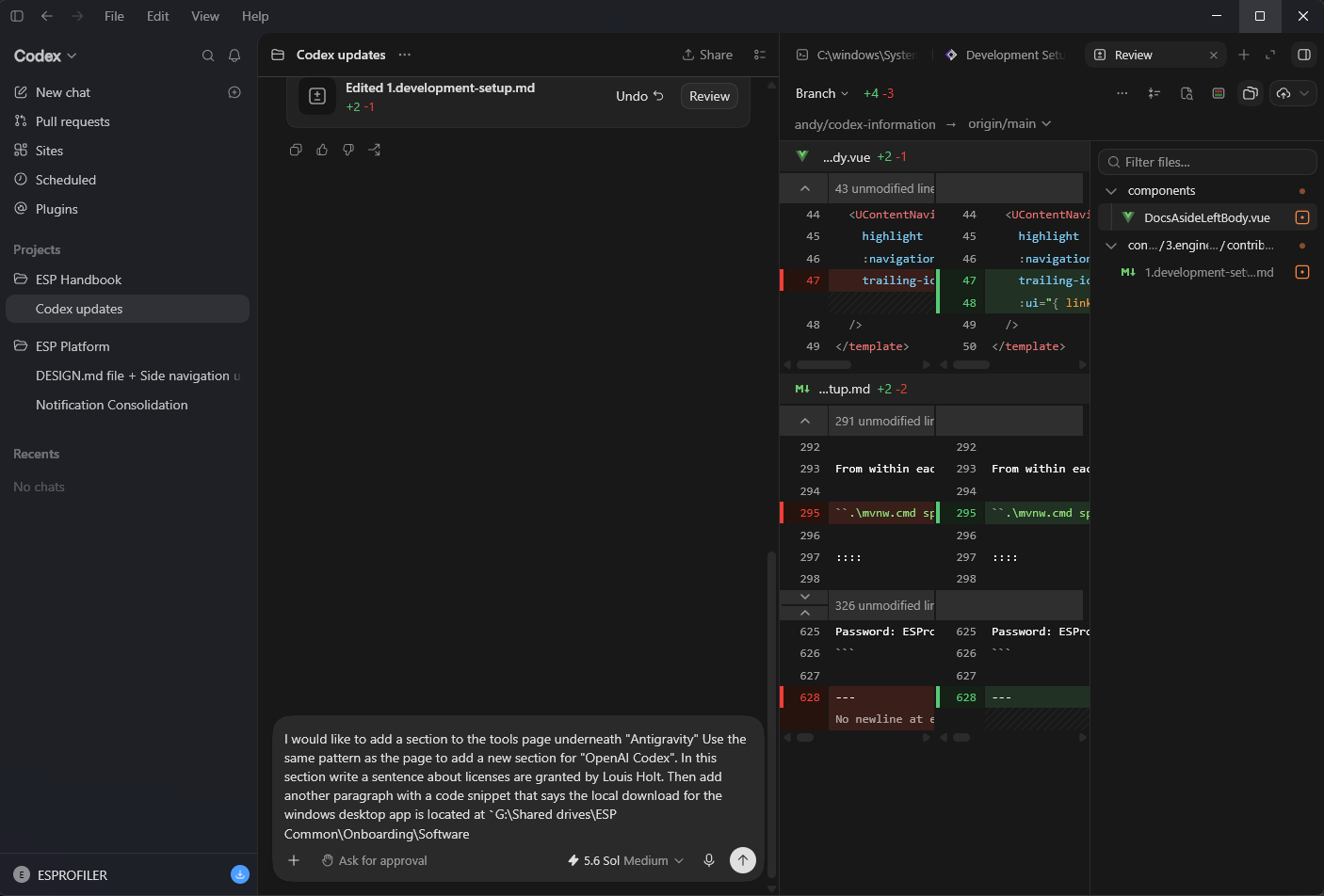
OpenAI Codex licenses are granted by Louis Holt.
The local download for the Windows desktop app is located at G:\Shared drives\ESP Common\Onboarding\Software.
Local Platform Setup with Codex
Prepare the Docker Compose stack
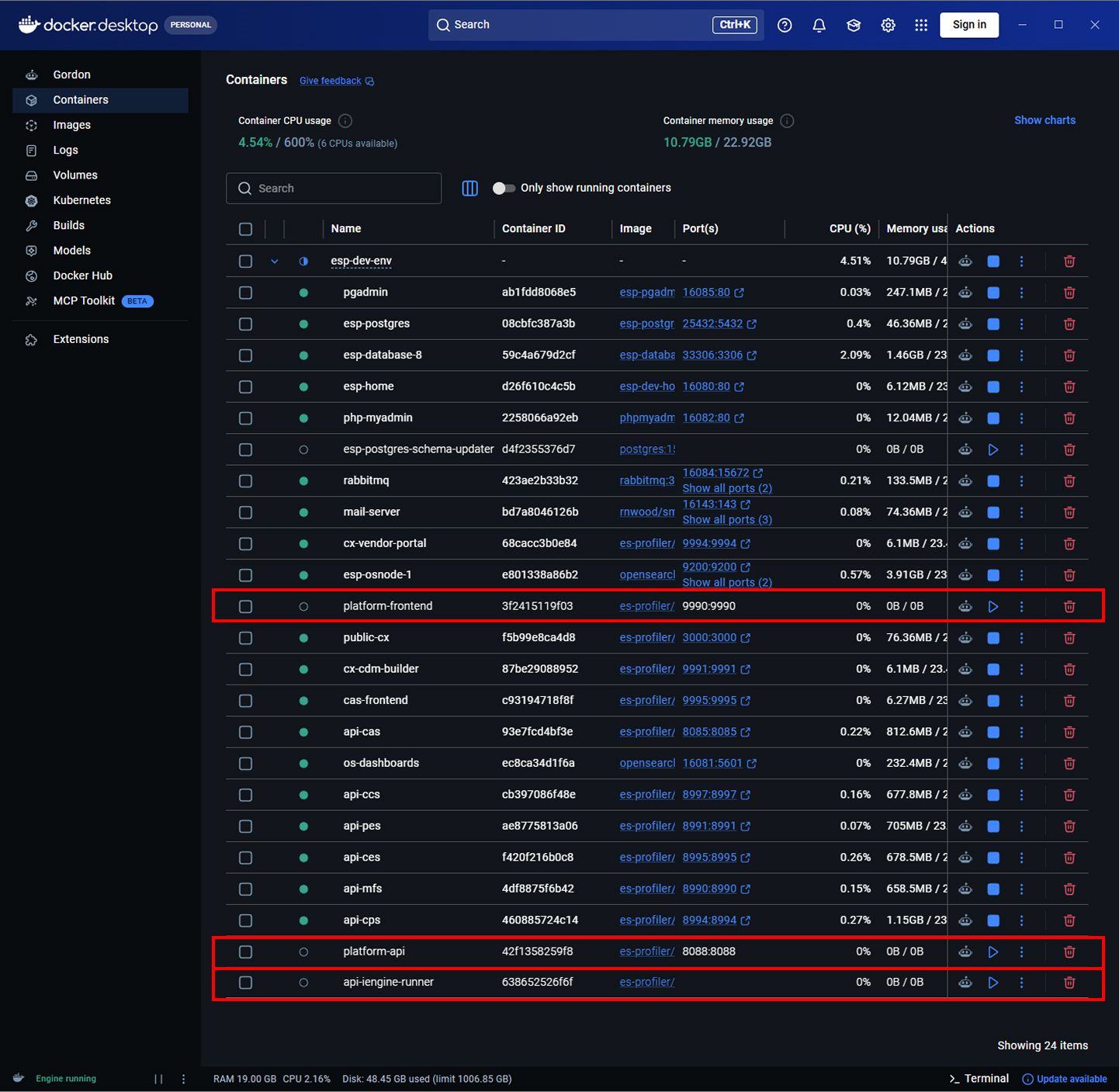
Start the Docker Compose development stack, then stop the following three containers in Docker Desktop because they will be run locally through Codex:
platform-frontendplatform-apiapi-iengine-runner
Leave the remaining containers running so that the local applications can use the services they depend on.
Set up the terminals and browser
When working on the Platform locally, open the parent workspace that contains the Platform repositories in Codex. Create three integrated terminal tabs and point each one at a different repository:
| Terminal | Working directory |
|---|---|
| Frontend | platform-frontend |
| Platform API | platform-api |
| iEngine runner | api-iengine-runner |
Start each application's usual local development process in its terminal and keep all three terminals running. This allows Codex to inspect the output from each part of the Platform while you work.
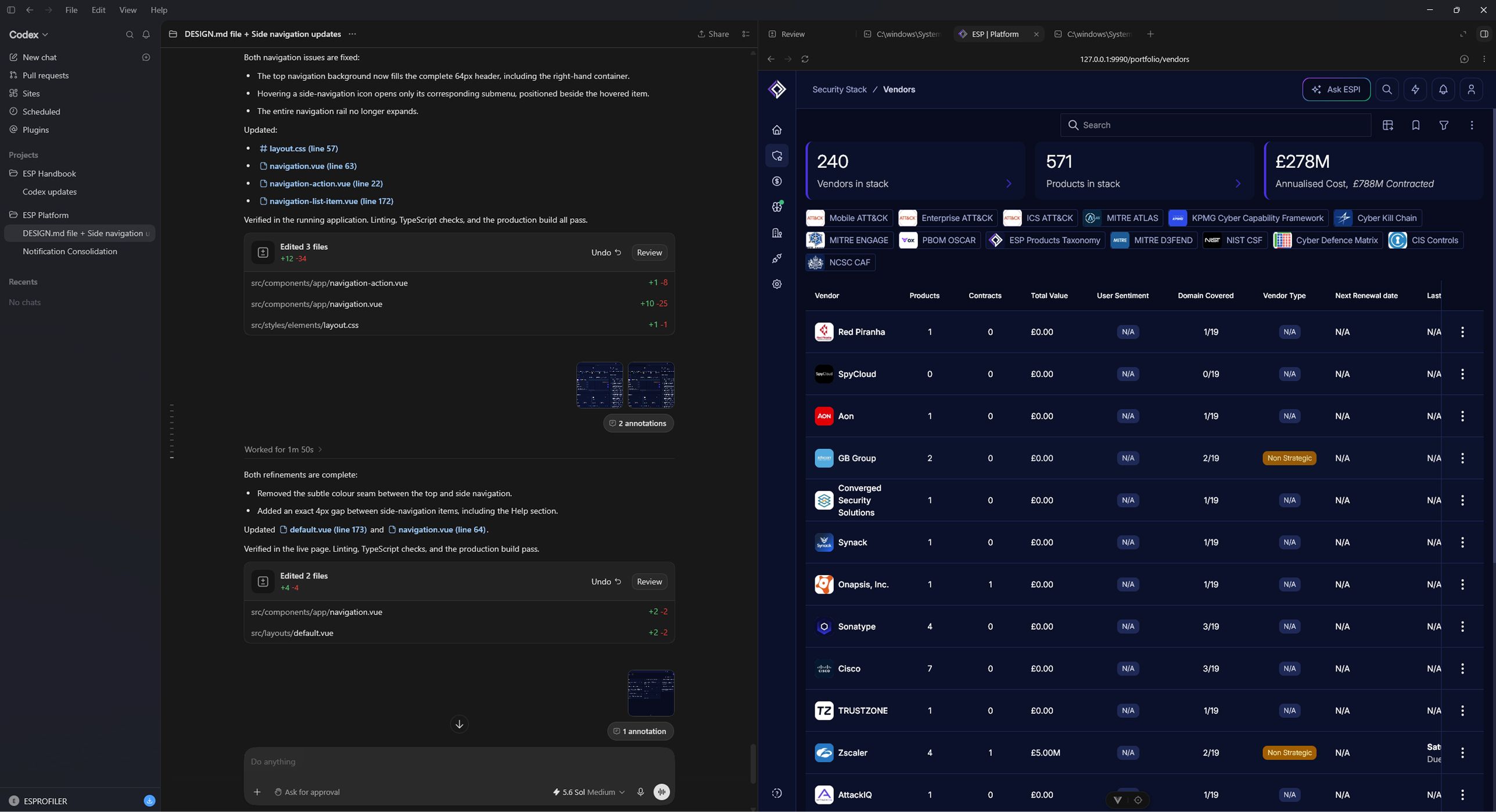
Once the frontend build is running, open Codex's integrated browser and navigate to http://127.0.0.1:9990. The browser will display the local Platform build and can be used to test changes alongside the terminal output.
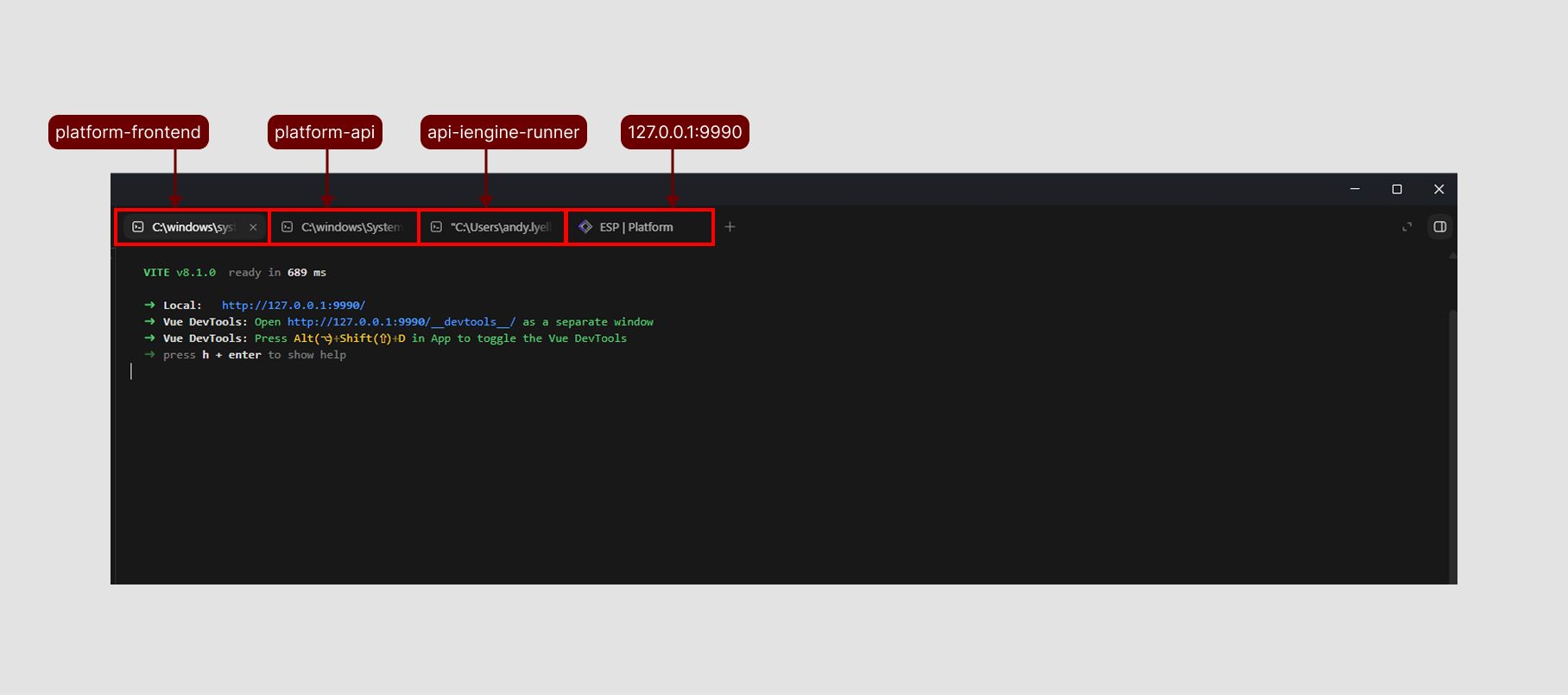
Platform authentication within Codex browser
- Get the Session ID from the Admin Console.
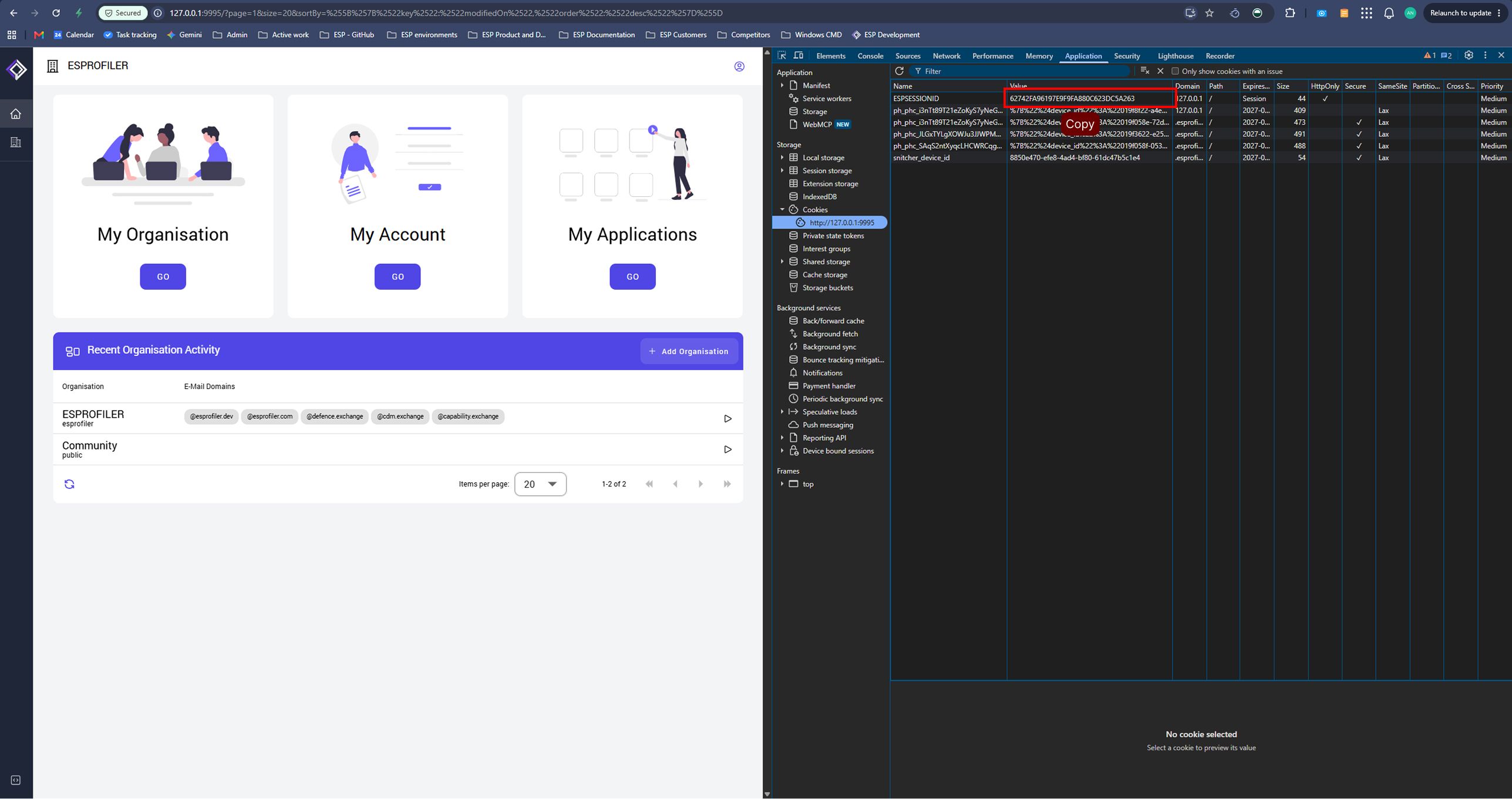
- Open the local browser in Codex, go to
http://127.0.0.1:9990, and click Authenticate.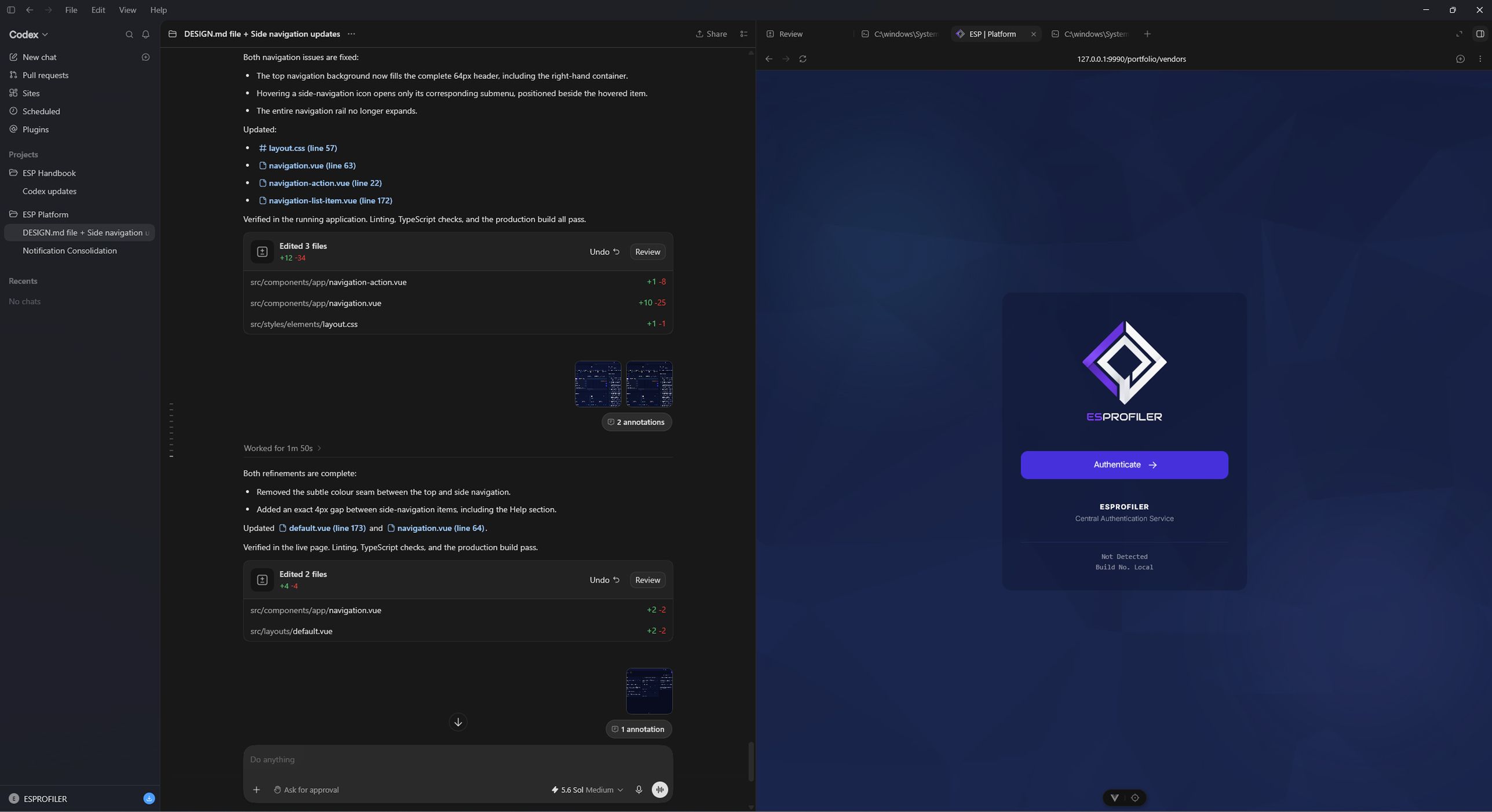
- Open the developer tools for the authentication iframe that appears and find the
ESPSESSIONIDcookie.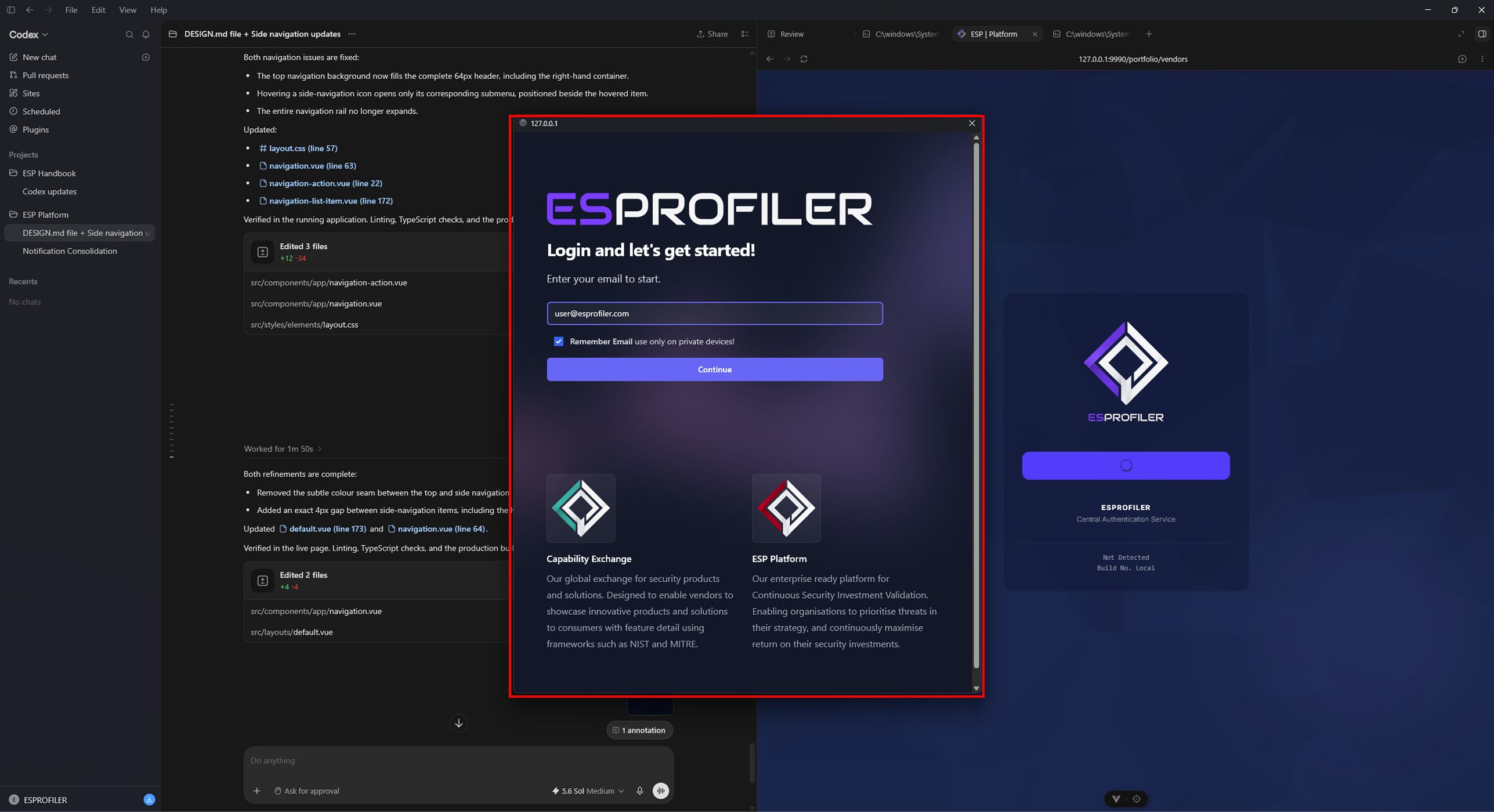
- Replace the cookie value with the Session ID copied from the Admin Console and press Enter.
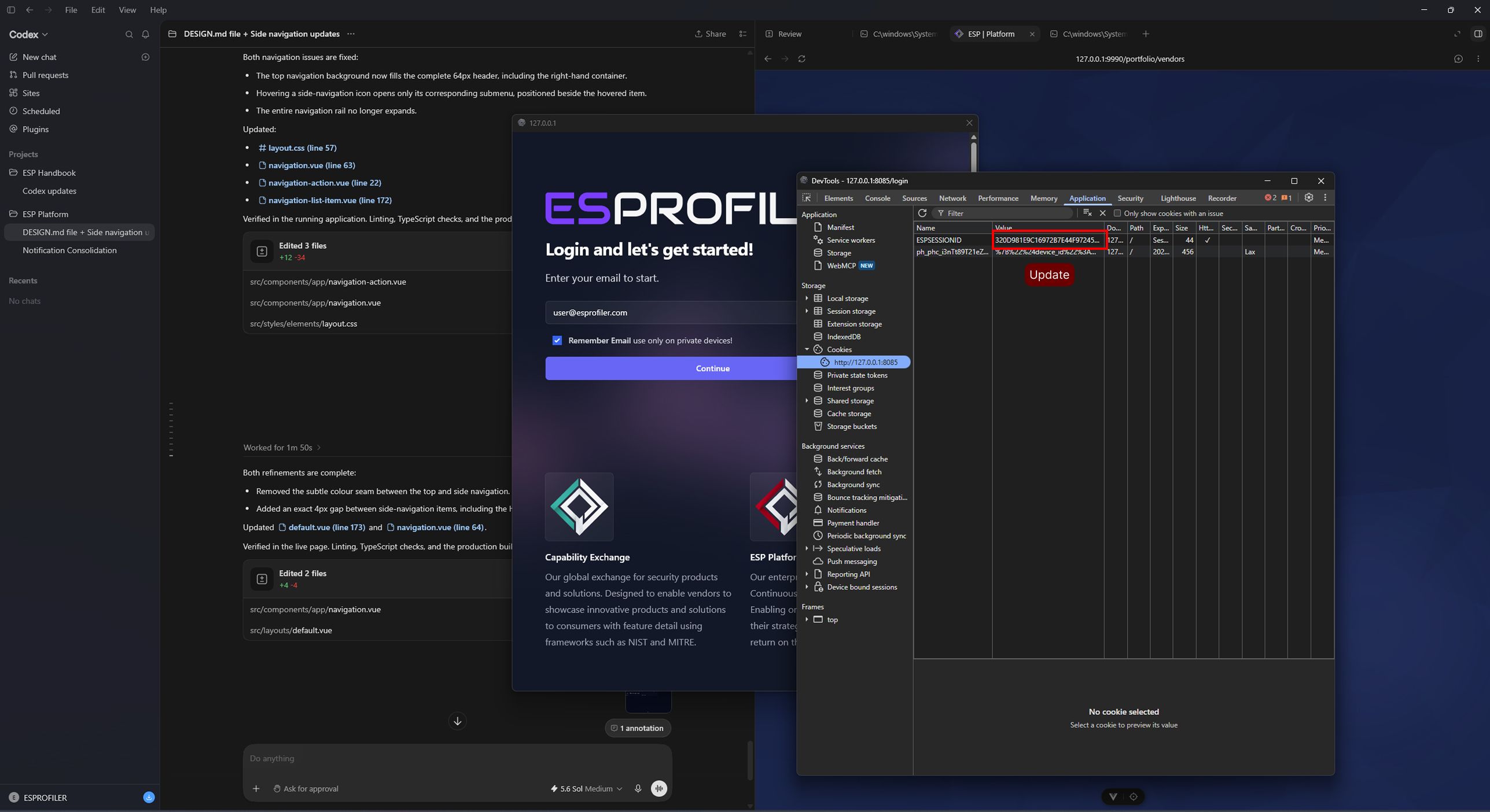
- Close the developer tools, exit the iframe, and refresh the local browser page. You should now be authenticated.