

Platform Ops
Releases
This guide will walk you through the process of releasing a new version of applications and websites.
Choose the release version using our Versioning guide before creating a release tag.
Step 1: GitHub Release
- The first step is to tag the branch (
main) from which the image will be built. - The tag can be created as part of the GitHub Release UI
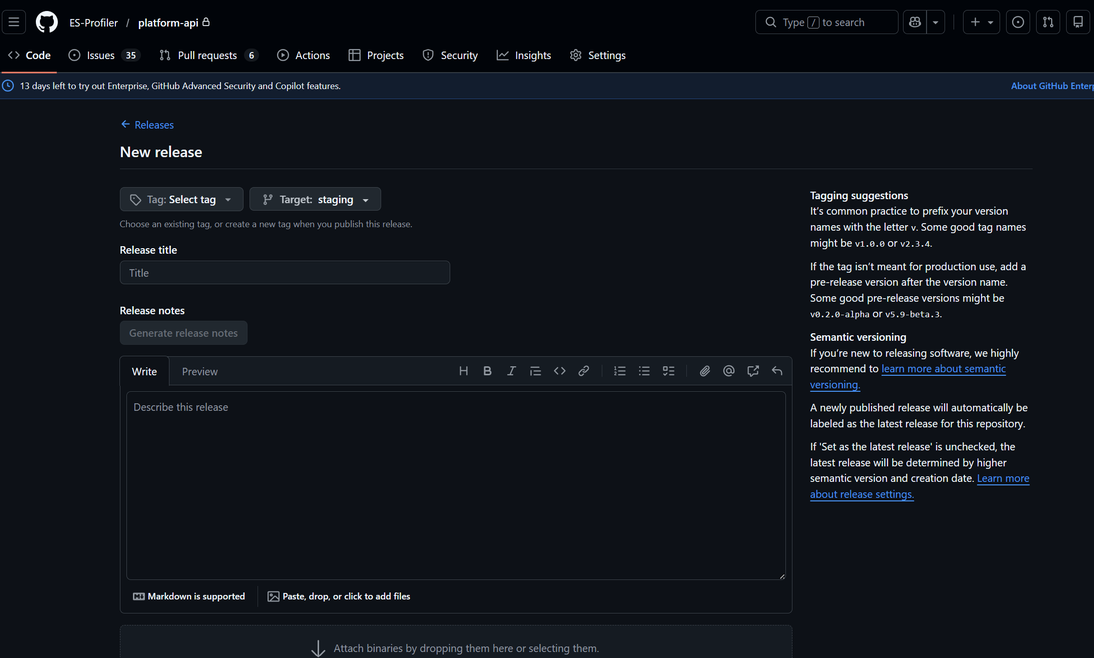
- When you create a tag in the format
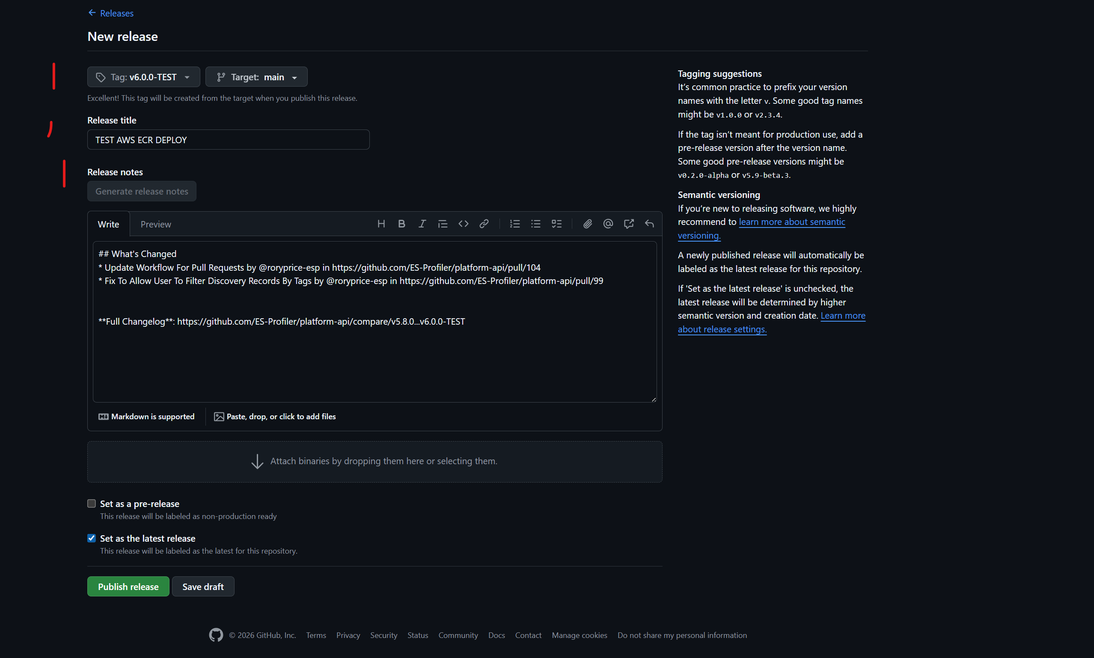
v*(for example,v7.1.2), a GitHub workflow will trigger to build and push an image to AWS ECR. - Select the branch that the tag will be attached to and add a release title
- Please always click on the
Generate release notesbuttons to have GitHub create the release notes based on the commit messages added between the last release and this one - Then click
Publish releaseto start the workflow that will build out the image and push it to AWS ECR
Step 2: Run Release Workflow
- Next, from the Action tab, select the
Release: Multi-Tenant Deployment(for platform) orRelease: <service> Deployment(for services) - Click on the run workflow button, there will be three inputs to fill out, the only required one is the version tag that you created in the previous step (eg. v7.1.2). The other two inputs lets you run the release for specific tenants or to exclude specific tenants. If they are left blank, the release will run for all tenants. If entering more than one tenant please use a common separated list eg
esp-cool-tenant, esp-blackmesabank.Also important to not that you can not use both the exclude and include inputs at the same time. The include input will always take precedence over the exclude input. Inputs are the service names on AWS of the tenants that you would like to include or exclude from the release. Note the tenant name is the same as the service name on AWS. If you are unsure what name to use please see here and select the corresponding name to use as an input - Click on
Run workflow. You can view the progress of the releases from the ECS on AWS
Tenant Update List:
In order to know which tenants we currently have active, we keep a list of service name in
src/main/resources/service-names.json in the platform-api directory. The workflows uses this list to know which tenants are present in the cluster. This means if we add a new tenant we need to update this list so that it will get picked up by the release workflow and the tenant will get updated.Customizing Tenant Environments:
Each tenant's deployment can be customized individually (including feature module entitlements, compliance banners, reporting currencies, AI privacy/telemetry modes, and dedicated database connections) via environment variables in AWS ECS. See the ESP Platform Configuration Guide for the full reference.
Frontend Applications
This section will cover the process of releasing a new version of a frontend application.
- Vendor Portal - vendor.capability.exchange
- Account Portal - my.esprofiler.com
Step 1: Production Build
- Ensure all code intended for production release is merged into the
mainbranch. - Navigate to the repository, and while on the
codetab, clicktagsfound to the right of the branch selector. - Click the releases button, then click
Draft a new releasebutton. - Click on
Select tagdropdown and at the bottom of the list, clickCreate new tag, in the prompt enter the version number,vX.X.Xand clickcreate. - For the
Tagetfield, themainbranch should be selected by default. - Enter a release title
Release vX.X.X - (Optional) Under
Release Notesselect the previously released version tag that comes immediately before this new tag if you don't trust the defaultAutooption (I don't). - Click
Generate Release Notes-- this will populate the Release Notes field with the commit messages since the last release. - Scroll down to the bottom of the page and click
Publish Release, this will trigger the Publish Tag workflow where it should be visibily running inActions. - Once the workflow completes, this will have created a new tag and pushed the build application to AWS Bucket in a folder reflecting the version number.
Interview Hub: Image Publishing and Deployment
Interview Hub has its own image publishing workflow, named CI - Build and Push Image to ECR. It builds the application's Docker image and pushes it to AWS ECR using the repository's AWS_ECR_URL and AWS_ECR_REPO settings.
Publishing the latest image
Every push to the Interview Hub repository's main branch, including a merged pull request, triggers the workflow and updates the latest image tag in ECR. Publishing the image does not deploy it to running tenants.
Updating Interview Hub with a platform release
Tenants pull the latest Interview Hub image from ECR when they are deployed as part of a platform release.